

Looker Studio vs Google Sheets: Which Is Better for Reporting?
Google Sheets and Looker Studio are both free Google tools people use for reporting. But they approach the problem from opposite directions. Sheets is a spreadsheet where you build formulas and charts manually from raw data. Looker Studio is a dashboard builder that connects to live data sources and visualizes them automatically.
This guide explains when each tool makes sense, where each falls short, and what to do when you outgrow both.
Google Sheets for Reporting
Google Sheets is a spreadsheet. Most teams start here because it is familiar, flexible, and requires zero setup. You paste data into cells, write formulas, and build charts.
Strengths
- Everyone knows it. Spreadsheets are the most widely understood data tool in business. No training needed.
- Complete flexibility. You can structure data however you want, write any formula, and create any calculation. No tool-imposed limits on how you organize information.
- Manual and automated data entry. Paste CSVs, use IMPORTDATA/IMPORTRANGE functions, or connect via Google Apps Script and Zapier integrations.
- Real-time collaboration. Multiple editors, commenting, version history, sharing via link — the same collaboration model as all Google Workspace products.
- Free. No cost for personal use. Google Workspace pricing for business accounts includes Sheets.
- Good enough charts. Bar charts, line charts, pie charts, scatter plots — basic but functional for internal reporting.
Weaknesses
- Manual data entry. Most teams export CSVs from GA4, Google Ads, HubSpot, etc., then paste them into Sheets. This is time-consuming, error-prone, and stale the moment you paste it.
- No live data connections. Sheets does not natively connect to APIs or databases. IMPORTDATA is fragile. Real integrations require Apps Script or third-party tools.
- Performance ceiling. Sheets slows down noticeably past 50,000 rows. Complex formulas and large datasets make it unusable.
- Not designed for dashboards. Charts exist but are clunky. No interactive filters, no drill-downs, no scorecards, no conditional formatting at the dashboard level.
- No governance. Anyone with edit access can change formulas, delete data, or break reports. Version history helps but is not true version control.
- Static reports. Sheets reports are snapshots. They do not update unless someone manually refreshes the data or builds automation.
Best for: Quick one-off analysis, ad-hoc calculations, small datasets, and teams that need maximum flexibility without learning a new tool.
Looker Studio for Reporting
Looker Studio is a purpose-built dashboard tool. It connects directly to data sources and renders interactive visualizations that update automatically.
Strengths
- Live data connections. Connect to GA4, Google Ads, Search Console, BigQuery, Sheets, and 1,000+ other sources. Dashboards update automatically — no CSV exports.
- Interactive dashboards. Date range filters, dropdown controls, drill-downs, clickable charts, and conditional formatting. Reports are dynamic, not static.
- Professional presentation. Dashboards look polished enough to share with clients, executives, and stakeholders. Templates for common use cases.
- Real-time collaboration. Same Google Docs-style editing as Sheets.
- Free. Core product costs nothing. Pro tier at $9/user for team features.
- Scheduled delivery. Email dashboard snapshots on a recurring schedule without manual effort.
Weaknesses
- No raw data manipulation. You cannot edit individual cells, write complex formulas, or restructure data. Looker Studio visualizes data — it does not transform it.
- Limited calculations. Calculated fields exist but are basic compared to spreadsheet formulas. No VLOOKUP, no INDEX/MATCH, no array formulas.
- 5-source blending limit. Cannot join more than 5 data sources.
- No data storage. Looker Studio does not keep data. If a connector breaks, the dashboard breaks.
- Learning curve. Not as steep as Power BI or Tableau, but harder than Sheets because the mental model is different — you configure connections and chart properties rather than writing formulas.
Best for: Recurring dashboards, live KPI tracking, client reporting, and any situation where data should update automatically without manual work.
When to Use Which
Scenario: Quick one-off analysis · Google Sheets: Yes · Looker Studio: Overkill
Scenario: Monthly marketing dashboard · Google Sheets: Manual effort each time · Looker Studio: Set up once, auto-updates
Scenario: Client-facing reports · Google Sheets: Unprofessional · Looker Studio: Professional templates
Scenario: Combining 10+ data sources · Google Sheets: Possible with manual work · Looker Studio: Limited (5-source cap)
Scenario: Raw data exploration · Google Sheets: Yes (filter, sort, pivot) · Looker Studio: Not designed for this
Scenario: Live KPI scorecards · Google Sheets: No (stale snapshots) · Looker Studio: Yes (live connections)
Scenario: Budget tracking with custom formulas · Google Sheets: Yes (full formula support) · Looker Studio: Limited (basic calcs only)
Scenario: Sharing with non-technical stakeholders · Google Sheets: Messy · Looker Studio: Clean and interactive
Scenario: Large datasets (100K+ rows) · Google Sheets: Slow/breaks · Looker Studio: Better (but still has limits)
The Common Workflow: Use Both
Many teams use Sheets and Looker Studio together:
- Google Sheets for raw data collection, manual data entry, and custom calculations that Looker Studio cannot handle
- Looker Studio connects to those Sheets as a data source and visualizes the results in a polished dashboard
This works well for small teams. The Sheet is the "database," and Looker Studio is the "frontend." But it introduces fragility — if someone edits the Sheet structure, the dashboard breaks.
When Both Fall Short
If you are choosing between Sheets and Looker Studio, you are likely in the early stages of data maturity. Both tools have hard limits:
- Sheets cannot handle live data at scale, and manual CSV updates waste hours every week.
- Looker Studio cannot transform data, is limited to 5-source blends, and slows down with complex datasets.
- Neither tells you what the data means. They show numbers, but extracting insights is still your job.
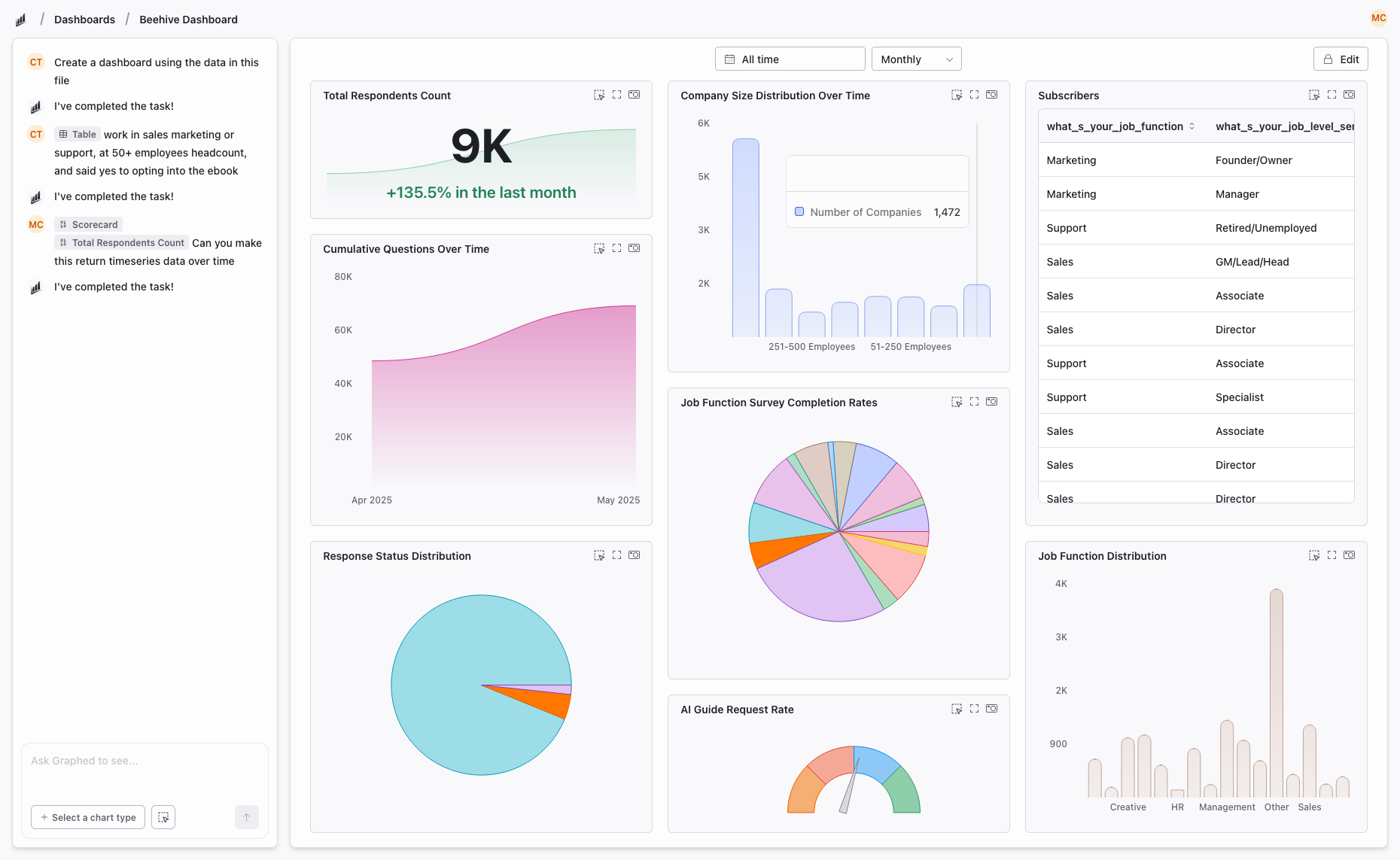
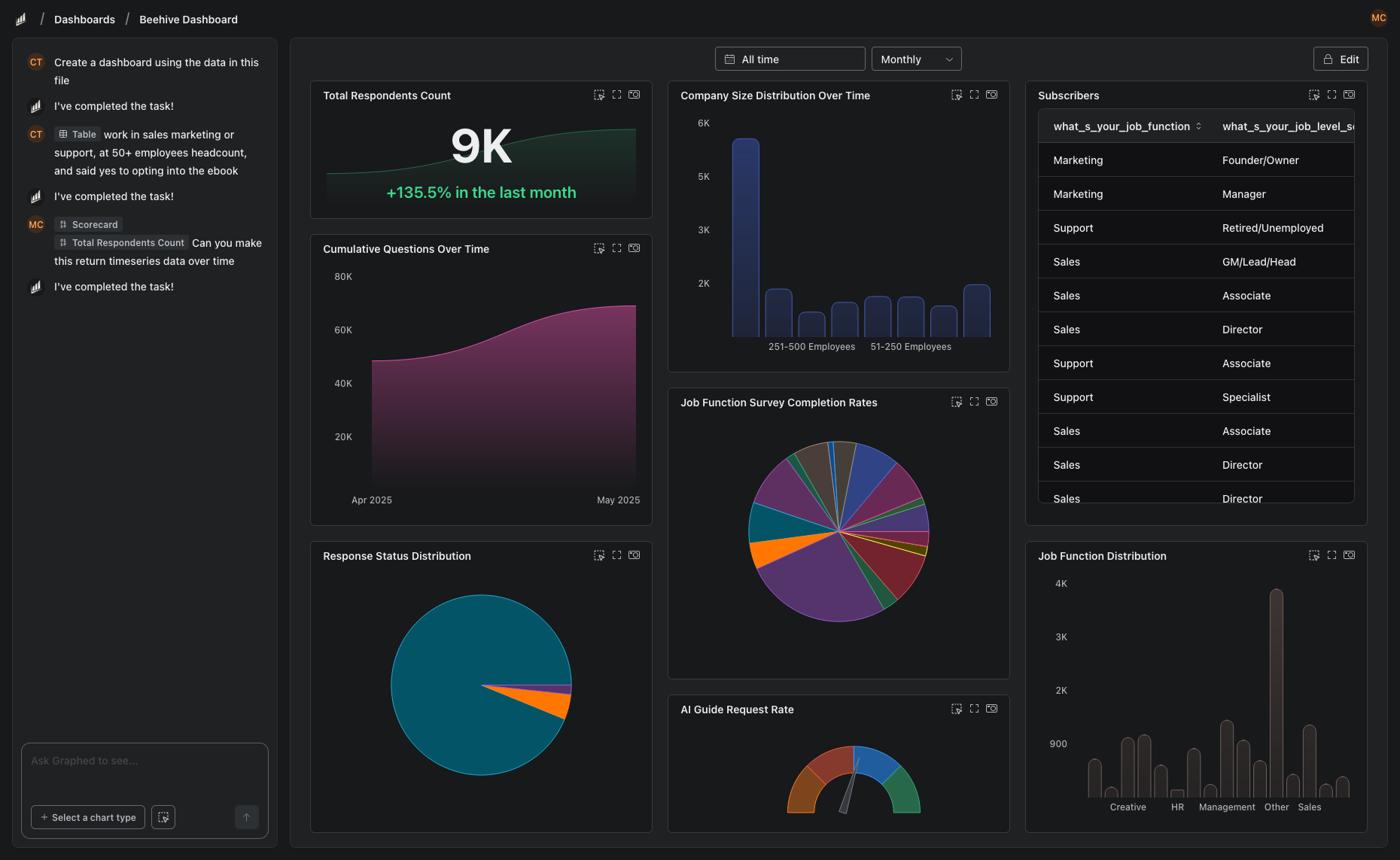
Try Graphed: AI-Powered Analysis Without the Manual Work
If you are stuck in a cycle of exporting CSVs to Sheets and building Looker Studio dashboards by hand, there is a faster path.
Graphed is an AI data analyst that connects to your live data — GA4, Google Ads, Meta Ads, HubSpot, Shopify, Stripe, Salesforce, and 350+ more — and builds dashboards from natural language. No spreadsheet formulas. No drag-and-drop chart builder. Describe what you want: "show me revenue by acquisition channel for the last 90 days." The AI writes the query, pulls the data, and renders it.
Data syncs hourly, so you are always working with live numbers. Setup takes 15 minutes via OAuth. First dashboard within 24 hours. If your Monday mornings involve exporting data to Sheets and copy-pasting into reports, Graphed was built for exactly that problem.
The Bottom Line
Google Sheets is best for ad-hoc analysis and custom calculations. Looker Studio is best for automated, visual dashboards. Most teams should use Sheets for the raw work and Looker Studio for the presentation layer — but both require manual effort to set up and maintain.
The real question is whether your team's time is better spent building and updating reports, or acting on what the data is telling you.
Related Articles
How to Create a Photo Album in Meta Business Suite
How to create a photo album in Meta Business Suite — step-by-step guide to organizing Facebook and Instagram photos into albums for your business page.
Is Google Analytics and Data Analytics the Same?
Is Google Analytics and data analytics the same? No — Google Analytics is one tool, data analytics is the broader discipline. Here is the difference.
What Database Does Tableau Use?
What database does Tableau use? Tableau connects to 100+ databases — it does not store data itself. Learn how live connections and extracts work.